The Complete WordPress Maintenance Guide

Get Your Free Website Audit
($3,000 Value)
- Uncover performance issues
- Identify SEO opportunities
- Security gaps, and quick wins
If you’re running a WordPress website, maintenance isn’t optional. It’s a must.
Skipping updates or ignoring routine checks might seem harmless, but it leaves your site open to security threats, slow speed, and unexpected downtime. And that can hurt both your visitors’ experience and your rankings on search engines.
Think of WordPress maintenance like a health check for your site.
When done regularly, WordPress maintenance services keeps things running smoothly, prevents costly problems, and gives you peace of mind knowing your website is in top shape.
In this guide, you’ll find easy-to-follow steps to help you maintain your site properly without the tech overwhelm.
What is WordPress Maintenance?
WordPress maintenance is the ongoing process of keeping your website updated, secure, and performing at its best.
It involves regular updates to the WordPress core, plugins and themes, along with backups, performance tuning, and security checks. Without proper maintenance, your site can face security vulnerabilities, slow load times, or even downtime.
With WordPress, you can build or scale a website without needing to code. But like any software, it needs regular care, just like your phone or laptop.
With the right tools and a smart maintenance plan, it’s easy to keep your site smooth, safe, and ready for growth.
10 Critical WordPress Maintenance Tasks
While there are plenty of ways to care for your website, these are the 10 key maintenance tasks we recommend focusing on.
They’re the ones that have the biggest impact on your site’s performance, security, and overall reliability.
If your current website maintenance service isn’t covering all of these, it might be time to rethink your support.
1. Regular Backups
Your website is made up of hundreds of files and a dynamic database. A single error or hack could wipe it all out. That’s why regular website backups are non-negotiable.
Use WordPress backup plugins and tools that allow you to securely store backups off-site and quickly restore them when needed.
Tools and Plugins:
- UpdraftPlus
- BlogVault
- BackupBuddy
Tip: Always keep off-site backups so your site remains secure even if your server crashes.
2. Updating WordPress Core, Themes, and Plugins
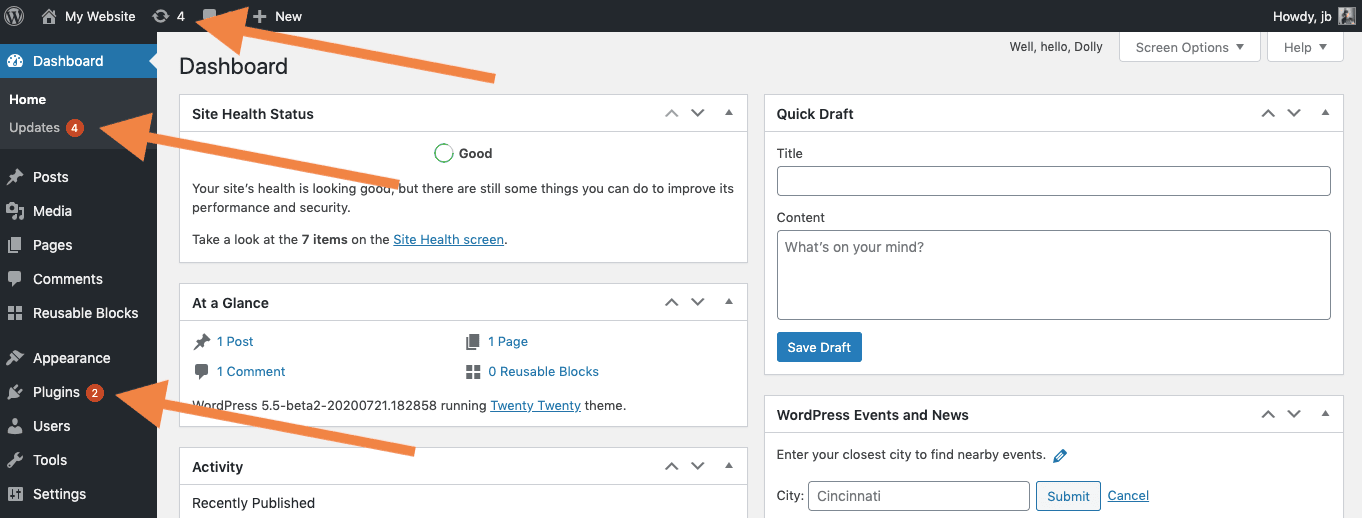
Think of updates as upgrades to your site’s stability and security. WordPress releases core updates every few months, and plugin/theme authors push updates even more often.
Skipping them can cause plugin conflicts, layout breaks, or security holes. So, schedule a routine check and make updates part of your plugin’s settings review.
For businesses that want zero hassle, switch to managed website maintenance in Melbourne.
3. Security Measures
Keeping your site protected means more than just using a strong password. Install security plugins, enable two-factor authentication, and regularly scan for malware.

Slow website wasting your marketing spend?
- Uncover performance issues
- Identify SEO opportunities
- Security gaps, and quick wins
Also, monitor your site’s files for unexpected changes and use a CDN with DDoS protection if available.

Tools and Plugins
- Wordfence Security
- Sucuri Security
- iThemes Security
- MalCare
4. Performance Optimisation
A slow site kills conversions. Optimise your WordPress hosting performance, compress images, enable caching, and clean your media library and database.
You can use tools and WordPress cache plugins like WP Rocket, Smush, or SiteGround Optimizer to improve loading times and keep the site clean.

Tools and Plugins:
- WP Rocket (Premium)
- W3 Total Cache
- Smush
- Autoptimize
5. Monitoring Uptime and Downtime
You can’t fix problems you don’t know about. Set up uptime monitoring tools like UptimeRobot or Pingdom to alert you the second your site goes down.
This is critical for eCommerce sites, especially during business hours. Downtime means lost sales, lost trust, and often a lost customer.
Tools and Plugins
- UptimeRobot
- Pingdom
- MainWP
- ManageWP
6. Database Maintenance
Your WordPress database performance affects your entire site. Over time, it gets cluttered with spam comments, post revisions, transients, and more.
Use tools like WP-Optimise to clean up junk, reduce bloat, and improve query speed. A clean database means a fast, reliable website.
Tools and Plugins:
- WP-Optimise
- Advanced Database Cleaner
- WP-Sweep
7. Broken Link Checks
Broken links create dead ends for users and hurt SEO. Use tools like Screaming Frog or Broken Link Checker to scan for them and fix or remove outdated external links.
If possible, redirect broken links to relevant pages or your temporary page, like a custom 404 or maintenance page.

Tools and Plugins:
- Broken Link Checker
- Redirection
- Link Whisper
8. Content Updates and SEO
Keep your site content fresh and search-friendly. Update old blogs, fix outdated info, and optimise for SEO using SEO plugins like Yoast or Rank Math.
Also, keep an eye on your Google Analytics data to see which pages underperform and need a content refresh.

9. User Management
Review who has access to your site regularly. Delete old users, assign proper roles, and avoid giving admin rights to people who don’t need them.
10. Comment Moderation
Comments are great for engagement, but not when they’re spam. Regularly moderate your comments, delete spam comments, and use anti-spam plugins.
Get zero hassle and expert support: Switch to our website maintenance in Sydney service.
Website Maintenance Frequency Checklist
1. Daily Tasks
These are your quick checks that have a big impact on your site’s stability and security, and help prevent an issue from becoming a problem.
- Check if your site is live
- Scan for security threats
- Back up your website
- Moderate comments
- Review Google Analytics for unusual traffic spikes or dips
2. Weekly Tasks
This is your regular tidy-up. Think of it like sweeping and mopping your website.
- Update WordPress core, themes, and plugins
- Check for broken links and 404 errors
- Test forms and checkout pages
- Clear your cache
- Review uptime and downtime logs
3. Monthly Tasks
Monthly tasks focus on performance, cleanup, and technical improvements. These tasks improve loading times and reduce bloat.
- Optimise your database
- Clean out the media library
- Audit user accounts
- Generate maintenance reports
- Check site speed
- Update old blog posts or content
- Run full security scans
4. Quarterly Tasks
Every quarter, take a step back and evaluate your site’s overall health and user experience.
- Review overall site performance and hosting performance
- Check theme and plugin settings
- Conduct a UX audit
- Review your backup strategy
- Run an SEO audit
- Update legal pages like Privacy Policy and T&Cs
5. Annual Tasks
Once a year, take a big-picture look at your website and align it with your business goals.
- Review your WordPress installation & structure
- Clean out unnecessary plugins
- Renew domains, SSL certificates, and hosting plan
- Refresh design elements
- Evaluate support services
- Run a content audit
- Review all integrations
How to Perform Common WordPress Maintenance Tasks?
Keeping your site healthy doesn’t mean you need to be a developer. Most maintenance tasks can be done easily with the right tools and a few smart steps.
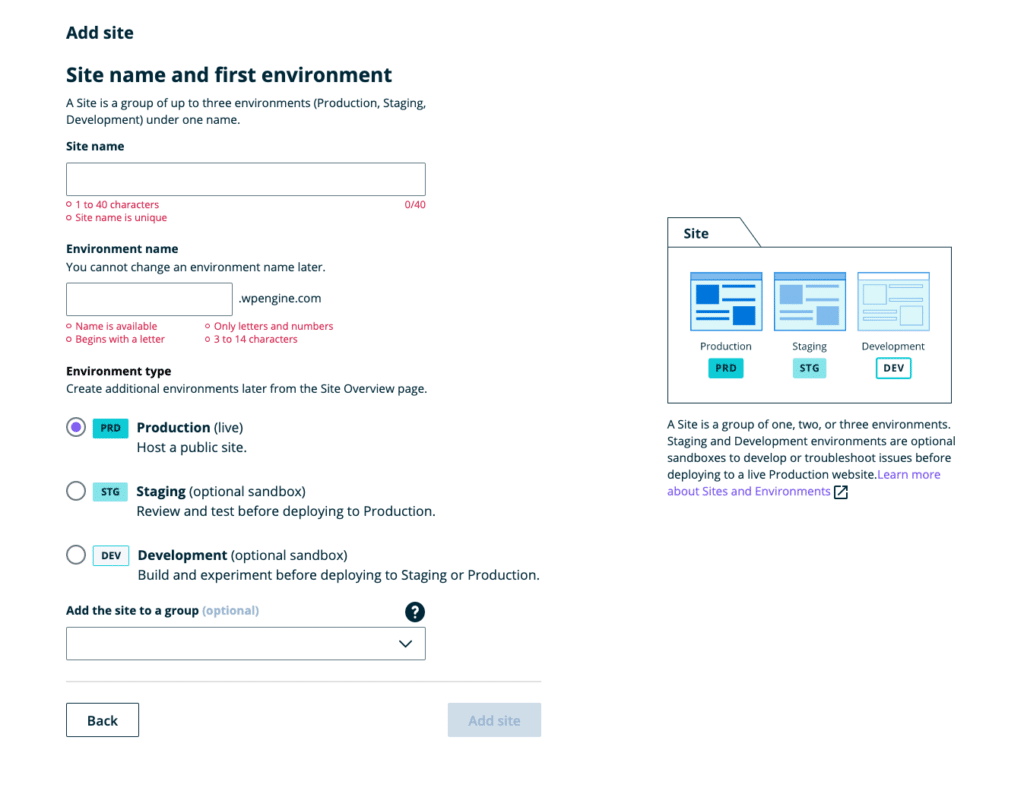
Step 1: Set up a Staging Server
Before touching your live site, always create a staging site. This is a safe, private copy of your website where you can test updates, plugin changes, design tweaks, and new features without risking downtime.
Most quality WordPress hosting providers offer one-click staging environments. If your host doesn’t, tools like WP Staging or BlogVault make it easy to create one with minimal setup.
Using a staging server is the safest way to maintain a smooth operation on your production site.
Step 2: Put Your Website in Maintenance Mode
It is important to put your website in maintenance mode while you’re performing your maintenance tasks because displays a friendly temporary page while hiding your real site behind the scenes.
There are two ways to do this: using a plugin or adding a small bit of code.
1. Maintenance Mode Plugins
This is the easiest way to activate maintenance mode.
Here are some popular plugins that let you show a custom maintenance page while you work on updates:
- LightStart (formerly WP Maintenance Mode)
- SeedProd
- Under Construction Page
- CMP – Coming Soon & Maintenance Plugin
- WP Maintenance
Choose one of the plugins and activate it. The plugin adds a new page to your WordPress backend called “Maintenance Mode”.

Once the plugin is activated, follow the following steps:
- Go to Settings > Maintenance Mode to configure the settings.
- Customise the message, logo, and design of your maintenance or coming soon page as needed.
- Enable maintenance mode using the toggle or checkbox.
- Under “Site Status”, confirm that your site is set to “Maintenance Active”.
- You can also set an expiry time. Choose when maintenance mode should end (after a certain number of hours/days or manually).
- Click “Save Changes” at the bottom.
- Visit your live site to confirm that the maintenance page is active.
2. Maintenance Code
You can also enable maintenance mode by adding a small function to your theme.
Here’s a basic code snippet you can add to your functions.php file in a child theme:
//WordPress Maintenance Mode

function wp_maintenance(): {

if (!is_user_logged_in()) {

wp_die('<h1>Website Under Maintenance</h1>

Website update is in progress, please check back later.');

}

}

add_action('get_header', 'wp_maintenance');
This will hide your website from visitors but still let logged-in admins access the front-end.
Important: Always use a child theme when editing theme files to avoid losing changes during a theme update.
Keep your website up to date with our Website Maintenance Perth services.
Step 3: Perform the Maintenance Tasks
With your staging site ready and maintenance mode active, you can safely begin the actual maintenance work. This includes:
- Updating the WordPress core, themes, and plugins
- Taking a fresh site backup
- Scanning for security threats
- Optimising your database and media files
- Testing key site features like forms, checkout, and navigation
Step 4: Review and Push to Live
Once everything looks good in staging, push the changes to your live site. If your hosting supports one-click deployment, use that. Otherwise, manually replicate the updates or changes.
After going live, recheck the site for any errors and turn off maintenance mode.
For businesses in Newcastle, our WordPress web design Newcastle experts can guide you through these processes or handle them on your behalf.
WordPress Maintenance Best Practices & Tips
Here are some must-follow expert tips for your WordPress maintenance:
1. Use SSL and Strong Passwords
Always secure your live website with an SSL certificate (HTTPS) and strong, unique passwords. It’s basic, but critical. This helps prevent brute-force attacks and keeps your site’s security solid.
2. Monitor Server Errors & Access
Limit access to sensitive server files using proper file permissions. Run regular audits with tools like Screaming Frog to find and fix 5XX errors that can impact SEO and overall performance.
3. Use a Staging Site for Testing

Before updating plugins or changing features, use a staging site. It lets you safely test changes without affecting your live website or causing unexpected downtime.
4. Remove Unused or Rogue Plugins
Delete inactive or unverified plugins. Rogue plugins often come bundled with malware and can damage your site’s security. Stick to trusted sources and well-reviewed free plugins or reputable developers.
5. Secure Your Login Page

Hide the wp-admin URL, limit login attempts, and enable two-factor authentication. These simple tweaks drastically reduce unauthorised access.
6. Monitor WordPress Activity Logs

By monitoring activity logs, you can see exactly who did what on your WordPress dashboard. At WP Creative, we use a plugin called WP Activity Log to track the logs. It helps us troubleshoot faster and prevent any security issues by keeping a detailed record of all user activity.
7. Core Web Vitals for Performance
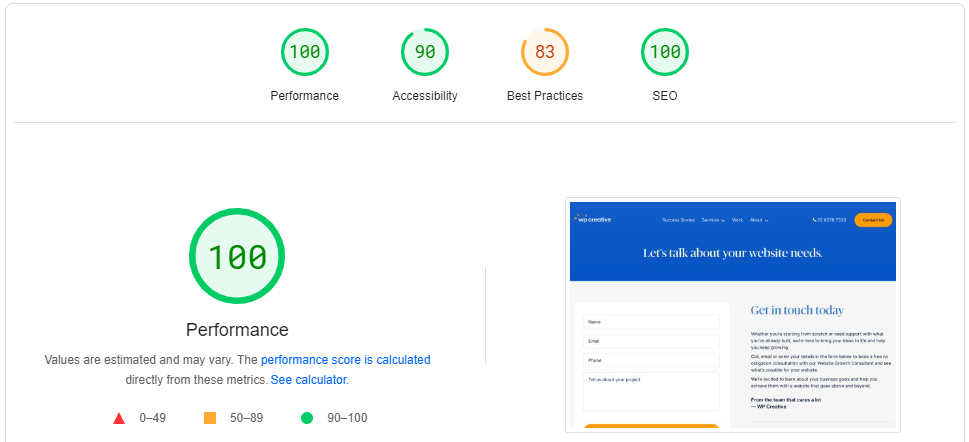
Core Web Vitals is a set of parameters by Google that measure a website’s engagement and performance ratio. You can test your site’s performance with Google Lighthouse.
Whether you are only looking to speed up your website for your visitors or if you need to improve user experience, check your website on Google Pagespeed Insights Tool to find out the areas that need improvement.
Benefits of WordPress Maintenance
Here are some of the benefits of WordPress maintenance:
- A Faster Site – Keeping up with your WordPress maintenance ensures that your website is fast. When you keep your site updated with the latest version of WordPress and plugins and use caching and compression tools, you’ll keep your server load down and your visitors happy.
- Enhanced WordPress Security – Another big benefit of WordPress maintenance is security. Keeping your site updated with the latest security patches means you’re less likely to be hacked. And using a good security plugin like Wordfence or Sucuri can help further protect your site. Read more on the reasons behind WordPress websites getting hacked.
- Peace of Mind – Knowing that your website is being maintained regularly can give you peace of mind, knowing that everything is running smoothly behind the scenes. This can help you to focus on other tasks or projects by freeing up time.
When to Consider An Agency for Your WordPress Maintenance
If managing updates, backups, or security is taking up your time or simply falling through the cracks, it’s time to consider a professional Website Scale Plan.
As your site grows or becomes more business-critical, DIY maintenance can lead to missed updates, slow performance, and security gaps that affect both conversions and search rankings.
That’s where we come in. At WP Creative, we take care of everything: updates, backups, security monitoring, performance optimisation, and ongoing support.
You’ll get expert help, proactive care, and complete peace of mind, all handled by our local Sydney team.
If you’re ready to stop worrying about your website, explore our Website Maintenance Brisbane team or book a free consultation and let’s chat about a plan that fits your business.
Conclusion
WordPress maintenance is important to keep your website running smoothly and securely. By regularly performing routine maintenance, you can avoid costly repairs or having to rebuild your website from scratch.
When it comes time to hire a developer for ongoing WordPress Support in Sydney, be sure to choose someone local who understands your specific needs and can provide the support you need. That will save a lot of hassle and money in the long term.
And if you’re looking for professional WordPress maintenance service, schedule a free consultation with our team to discuss whether our WordPress Care Plan is right for your business.
WordPress Maintenance FAQs
Does WordPress require maintenance?
Yes, WordPress needs regular maintenance. Without it, your live site may face security risks, slow speed, or plugin conflicts. A proper WordPress maintenance plan ensures smooth operation, better user experience, and improved visibility on search engines.
For businesses needing ongoing support, learn more about our website maintenance packages in Australia.
How to do maintenance on WordPress?
Maintenance involves tasks like updating to the latest versions of WordPress core, themes and plugins, performing security monitoring, taking regular backups, optimising performance, and cleaning the database. Using a premium plugin or hiring WordPress experts makes it easier to manage everything efficiently.
How long does WordPress maintenance take?
Depending on the size and complexity of your site, it can take anywhere from 30 minutes a week to a few hours a month. Ongoing regular updates and checks ensure your website’s performance stays consistent without taking up too much of your time.
Is it hard to maintain WordPress?
Not if you have the right tools and plan in place. Many tasks can be automated using free or premium plugins, and you can always rely on WordPress experts for technical support. The goal is to keep your software healthy with minimal hassle.
How much does WordPress maintenance cost?
It depends on your needs. DIY maintenance with plugins can be free or low-cost. A professional maintenance plan typically ranges from $99 to $500+ per month, depending on the level of support, security monitoring, and features included.
At WP Creative, our WordPress maintenance services feature maintenance plans at different prices so that you can find your best fit based on your needs and budget.
How often should you update WordPress?
You should apply regular updates as soon as they’re available. This includes core WordPress updates, theme and plugin updates, especially if they fix bugs or WordPress security vulnerabilities.
How often should I back up my WordPress site?
Daily or weekly, depending on how often you publish new content or receive orders (especially for eCommerce sites). Backups are essential for restoring your live site quickly in case something goes wrong.
How do I turn on maintenance mode?
You can turn on maintenance mode by installing a plugin like LightStart or SeedProd or by directly adding the code snippet to your website. These plugins let you display a coming soon page or maintenance message while you work behind the scenes.
If using code, you can add a code snippet to your theme’s functions.php file.
Read our complete guide on how to put your WordPress site into maintenance mode.
Does maintenance affect SEO?
Yes, in a good way. A properly maintained site loads faster, is more secure, and avoids downtime, all of which help with rankings on search engines. Just avoid making major changes on the live site without testing on staging, and always use a proper maintenance plan to prevent errors.
Why is WordPress maintenance important?
It protects your website’s performance, keeps your WordPress security strong, and ensures everything works as expected. Without maintenance, your software can become outdated, vulnerable, and unreliable, affecting both conversions and your SEO.

Get Your Free Website Audit
($3,000 Value)
- Uncover performance issues
- Identify SEO opportunities
- Security gaps, and quick wins